WELCOME TO YOUR
Template Launch Hub
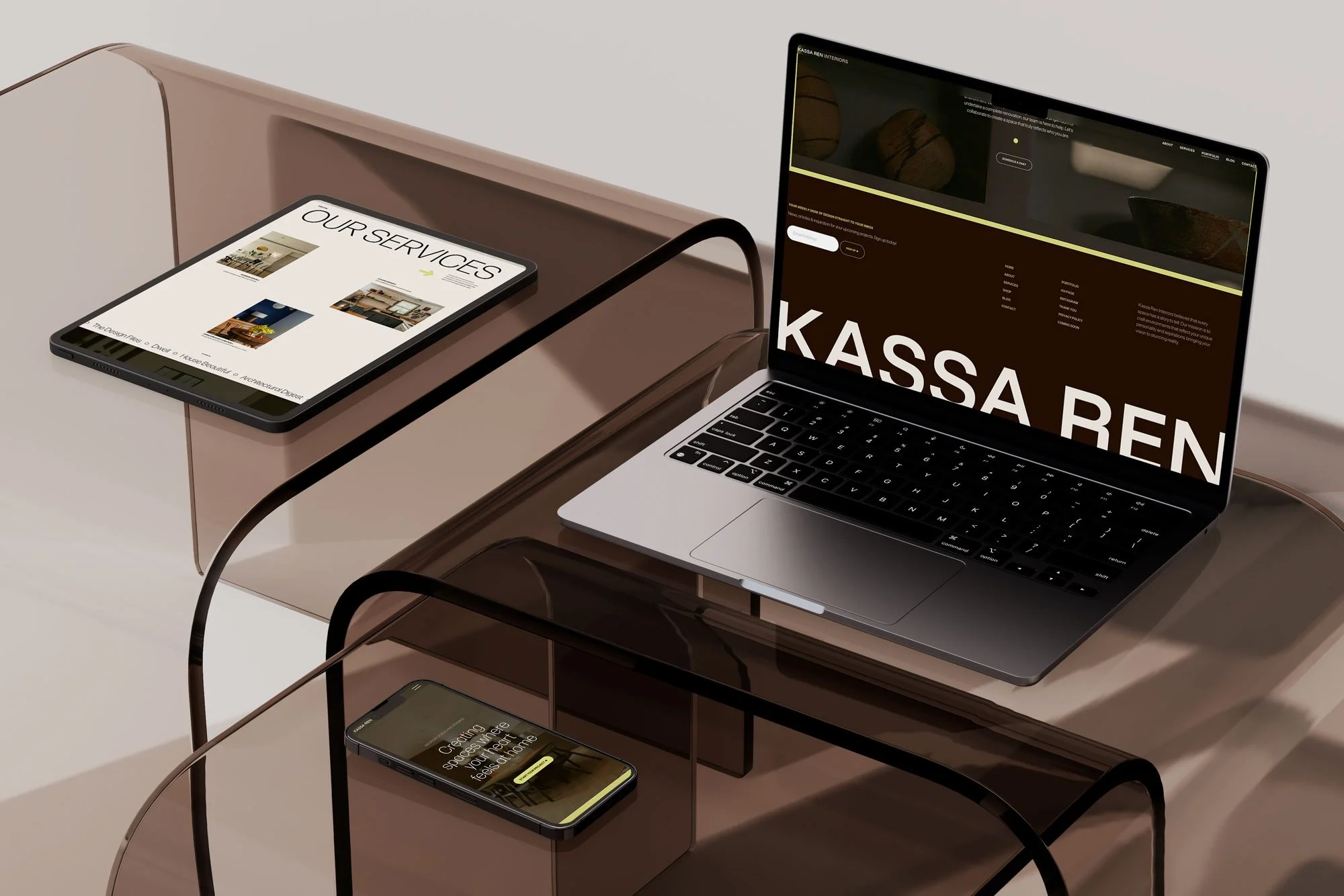
This step-by-step guide will help you customise your Squarespace template, update your content, complete the key settings and get your website ready to launch with more clarity and less overwhelm.
Work through the modules in order, or jump to the section you need.
Before jumping into the tutorials, here’s the order I recommend working through so you can move from template access to launch with less back-and-forth.
Use this as your big-picture checklist. The modules below will walk you through each part in more detail.
01
Download the guides while the template is being prepared for you.
02
Accept your Squarespace template invitation.
03
Duplicate your site, so you have a backup
04
Update your sitewide styles, including logo, colours and fonts
05
Replace the demo content with your own copy and images
06
Check mobile, links and forms
07
Cross-check the SEO checklist
08
Connect your domain and LAUNCH!
Website Planning
Get clear on what your website needs before you start customising.
SEO Checklist
Complete the key SEO settings for your site pages, images and search appearance.
Final Launch Guide
Run through the final checks before you publish and share your website.
Access your Squarespace (SQSP) Template
01
Check your email
Within 48 hours, you will receive an email from Squarespace with the subject line: "New Squarespace Contributor Invitation...". Worth taking a peek at your spam folder if you don’t see the email in your inbox.

02
Accept the Invitation
- Open that email and click 'Accept Invitation'.
- Log in, and the template will instantly appear in your Squarespace dashboard as a brand-new website!

03
Enjoy the 3-month free trial
Because this is a developer template, you will get an extended 3-month free trial to customise your website before you have to choose a paid Squarespace plan.
Click the EDIT SITE button to start editing.

Before you start
NOTE: Duplicate the site so you have the original to fall back on.
Click here ⇲
Need help?
If you have any questions or have not received your invitation within 48 hours, please email me immediately at hello@nina-n.com.au
✺ MODULE 1
Get familiar with Squarespace
Dashboard / Site Menu / Site Styles
DASHBOARD

This is the main menu where your template(s) are displayed.
HOW TO ACCESS: Visit link https://account.squarespace.com ⇲
OR Click the logo circle at the bottom left corner of the Site Menu.
SITE MENU (Left Panel)

This is where you'll find the Website tab to edit your template, Email Campaigns (if you plan to use them), Contacts, Analytics and more.
HOW TO ACCESS: On your dashboard, select your template, which will direct you to the Site Menu.
Click the 'Website' tab to access your website 'Pages' and Site Styles. Select 'Edit' to start customising.
more about Site Menu ⇲SITE STYLES (Right Panel)

A global panel that allows you to change fonts, colours, spacing, and other design elements across your entire site.
more about Site Styles ⇲✺ MODULE 2
Set up your site basics
Ensure you have your content, images and copy ready to be implemented.
✺ MODULE 3
Customise your pages and content
-
-
• Add and edit a block
*Such as Text, Image, Line, Form, Newsletter, Social Links, etc. - • Pin a block to its section
- • Add anchor link to a section
- • Create a text link
-
• Add and edit a block
✺ MODULE 4
Check the essential settings
✺ MODULE 5
Test everything
✺ MODULE 6
Final pre-launch checks
✺ MODULE 7
Launch and share your site
✺ YOUR QUESTIONS, ANSWERED HONESTLY.
Before purchase
-
These templates are best suited to service-based businesses, creatives, consultants, studios and small business owners who want a polished website without starting from scratch.
They are especially useful if you need a clear online presence to explain what you do, showcase your work and guide people towards an enquiry, booking or purchase.
-
Free templates can be a helpful starting point, but these templates are designed with a more specific page flow, content structure and visual direction, so you have a clearer foundation to customise from.
-
Yes. These templates are built for Squarespace 7.1.
You’ll need a Squarespace account to use your template. If you do not already have one, you can create an account and choose a Squarespace plan that suits your needs.
-
No design or coding experience is needed.
The template is already designed and built for you, so your main job is to update the words, images and details to suit your business. Some comfort using Squarespace will help, but the template is created to make the process feel more manageable.
-
Absolutely! Designers can use the templates for client projects. One template purchase covers one website only.
-
A structured written guide with module-based steps, checklists, and curated links to relevant Squarespace Support tutorials.
You can also find the SEO Checklist and Final Launch Guide to help you launch with confidence.
Please note: It does not include custom-recorded video tutorials, but it does direct you to relevant Squarespace Support resources where needed.
-
No, this template does not include custom-recorded video tutorials.
Squarespace updates its platform regularly, which means video walkthroughs can become outdated quickly. Instead, the Template Launch Hub is a written, step-by-step guide designed to stay clear and easy to update, with links to relevant Squarespace Support tutorials and other helpful resources where practical how-to guidance is needed.
-
I’m happy to help with template-related questions such as:
Accessing your purchased template
Understanding where to find something inside the template
Clarifying steps inside the Template Launch Hub
Questions about included template features
Issues with CSS or code that has been provided as part of the template
Broken links, missing instructions or errors within the template guide
After purchase
-
After purchase, you’ll receive access to your chosen Squarespace website template, along with instructions to help you customise it with your own content, images, colours and brand details. You’ll be able to work through the template at your own pace and prepare your site for launch.
Each template is designed as a starting point, so you’re not building from a blank page. You’ll be able to replace the demo content with your own and shape the site to suit your business.
-
Your template will be transferred to the email address used at checkout. You’ll receive a Squarespace invitation to accept the template into your own account.
This is not an instant file download. You’ll need a Squarespace account to accept and customise your template.
-
Within 48 hours (or sooner)
-
You’ll need a Squarespace account and access to the email address used at checkout. If you do not already have a Squarespace account, you can create one when accepting the template invitation.
Customising your template
-
Yes. You can customise the colours, fonts, images, text and layout sections to suit your brand.
You can keep the design close to the original template or adjust it to feel more like your own. The structure gives you a polished starting point while still allowing room for personalisation.
-
This depends on how ready your content is. If you already have your words, images and brand details prepared, you may be able to customise your template within a few days. If you’re still writing content or gathering images, it may take a little longer.
The template helps reduce the design and layout decisions, but you’ll still need to allow time to personalise it properly before publishing.
-
Yes. If you like the look of a template but would prefer someone to customise it for you, I offer a more hands-on option.
This can include updating the template with your content, images, colours and brand details, so you can launch with more support and less time spent figuring it all out yourself.
Policies and usage
-
One template purchase covers one website. If you’d like to use the same template for another website or client project, you’ll need to purchase an additional licence.
-
Due to the digital nature of website templates, all sales are final, and refunds are not available once the template has been purchased or delivered.
Please read through the template details carefully before purchasing. If you’re unsure whether a template is the right fit, you’re welcome to get in touch before buying.
-
Your template includes 30 days of email support from the date of purchase.
This support is here to help with template-related questions, such as accessing your template, understanding the included setup guide, using the template features and troubleshooting any CSS or code supplied with the template.
Support does not include general Squarespace training, custom design advice, copywriting, SEO strategy, business strategy, third-party plugins, custom code beyond what is included, major layout changes, website audits, done-for-you customisation or phone/video support.
Support is available by email only. I aim to respond within 2–3 business days, though this may vary during busy periods, weekends, public holidays or due to unforeseen circumstances.
Please note that support may be limited if the template has been significantly altered from its original structure. Squarespace may also update its platform over time, which can affect settings, features or interface details.
Publishing and SEO
-
To publish your website, you’ll need a domain name and an active Squarespace website plan.
Squarespace plan requirements may vary depending on the features you need, so I recommend reviewing Squarespace’s current pricing before choosing your plan.
You can find their hosting pricing here. Business plan and up includes free domain/business email for the first year (billed annually option only).
-
Great question!
The answer is yes. Squarespace includes built-in SEO tools that help you optimise page titles, descriptions, URLs, image alt text and other key settings.
-
Absolutely! Squarespace 7.1 Fluid Engine comes with a dedicated mobile editor. You have complete control to adjust nearly everything on mobile without affecting your desktop design.
-
No. The template and included guides are designed to give you a clear and professional website foundation, but they do not guarantee Google rankings, traffic, enquiries, sales or profit. Your results will depend on your business, offer, content, audience, marketing strategy and how consistently you use your website.
✺ BONUS TIPS
How to find answers faster
If you get stuck on a specific Squarespace setting, the fastest way to find an answer is often to search for the exact thing you are trying to do.
The links in the ‘HELP LINKS BY TOPIC’ section are a good place to start, especially for general Squarespace features and settings. You can also use Google or an AI tool to help explain a step in simpler language while you wait for my reply.
If you are using an AI tool, you could ask:
“I’m editing a Squarespace 7.1 Fluid Engine website. I want to change the spacing between two sections on my homepage. Can you explain what settings I should check?”
*Please keep in mind that online tutorials and AI answers may not always be up to date. For important account settings, billing, domains, email, checkout or technical issues, it is best to double-check with Squarespace Support.
For best results, be specific.
WHEN YOU SEARCH, INCLUDE:
That your site is built on Squarespace 7.1
The feature or setting you are trying to edit
The page, section or block you are working on
What you want the final result to be
For example: Instead of searching “How do I fix my website?”
TRY:
“How to change button style in Squarespace 7.1”
“How to adjust mobile layout in Squarespace Fluid Engine”
“How to connect a domain to Squarespace”
“How to edit image block spacing in Squarespace 7.1”
✺ Squarespace Help Links by Topic
Message me
Or email me hello@nina-n.com.au
DISCLAIMER
The Template Launch Hub is designed to help you set up and customise your Squarespace website template with more clarity and less guesswork. It does not include custom design, copywriting, branding, SEO strategy, one-on-one training or done-for-you setup.
Squarespace and third-party resources may change over time, so some settings, steps or linked tutorials may look slightly different after purchase. This template and guide also do not guarantee Google rankings, traffic, enquiries, sales or profit. You are responsible for reviewing your own content, images, settings, links, forms, policies and business information before publishing.